
Only Admin-PAU users can enable the Order function. However, the Ordering role can be assigned to any user role.
Please note the following:
- To activate the order functionality, the brand must first enable the Order function at the country level. Once this is confirmed, the Order button activation will become visible in the General Settings. After approval, the appropriate user role must be assigned before the feature can be used.
- Orders can only be placed for single-brand baskets.
- Ordering is currently available only for Digital Sales Assistants in Germany.
- Digital Sales Assistant does not display price information for orders. Pricing is provided by the manufacturer.
STEP 1
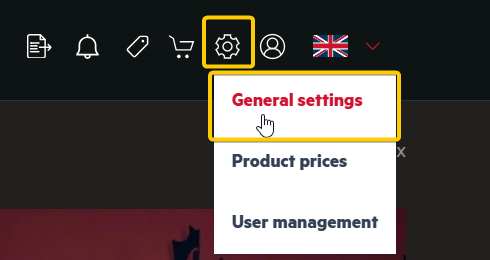
Log in to your DSA account and open General Settings.
STEP 2
Scroll to Basket Settings and enable the Order Button toggle.
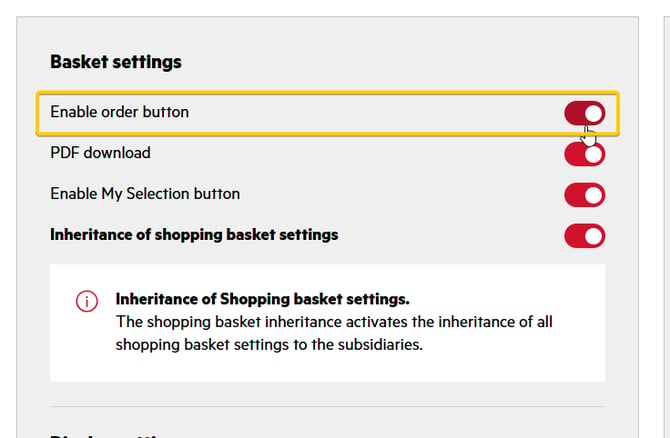
If the Enable Order Button option is not visible, the manufacturer has not yet confirmed the use of the Order function for this brand.
STEP 3
Scroll to the bottom of the General Settings page and click on 
STEP 4
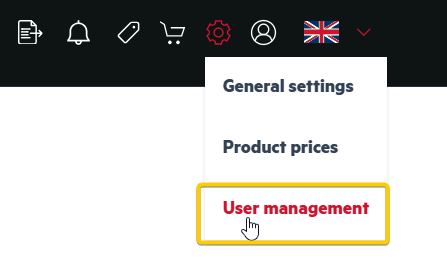
Open the User Management tab.
STEP 5
Search for the user you want to update, open the dropdown menu, and assign the Ordering role.
Only users who have the Ordering role assigned can place basket orders.
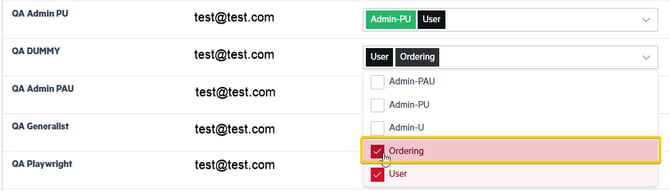
Once these steps are complete, the Order function will be enabled.
If you would like to learn how to order your Shopping Baskets, see the following article: How to Order Your Shopping Basket in the DSA