
Main filter
On the Home page, you can browse all available brands and product families. Select your preferred combination and click the button to open the corresponding results page.
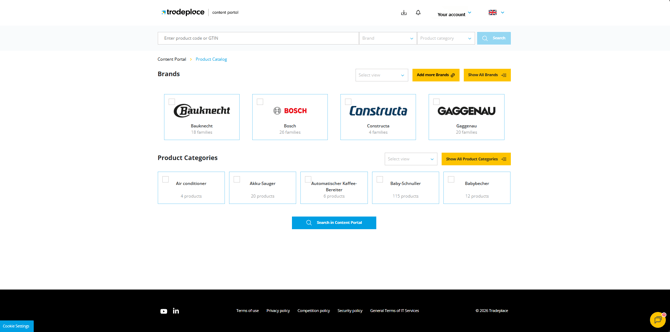
Search Bar
Use the search bar to filter directly by brand or product family from the drop-down list. You can select multiple options at the same time and you can also search by Product Code or GTIN.
To search for multiple products, separate each code with a semicolon ( ; ).
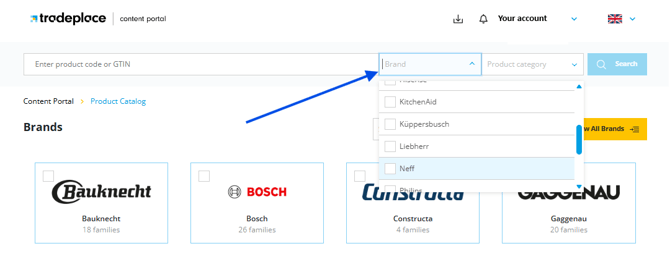
Selection of Assets
After choosing your combination of brands and product families, you will be redirected to a results page where all matching products are displayed. From there, you can open any product to choose which assets you want to download.
Assets can only be selected from within the product view by clicking "See Product Details"
-png.png?width=670&height=781&name=Bild%20(2)-png.png)
-png.png?width=670&height=916&name=Bild%20(3)-png.png)
Inside the product, there are two ways to select assets for download:
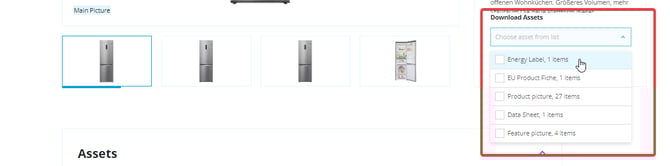
Dropdown Menu
Select an entire group of assets at once, such as all images, videos, or documents.
Individual selection.
By scrolling down, you can also choose specific assets individually from each category, allowing you to download only what you need.
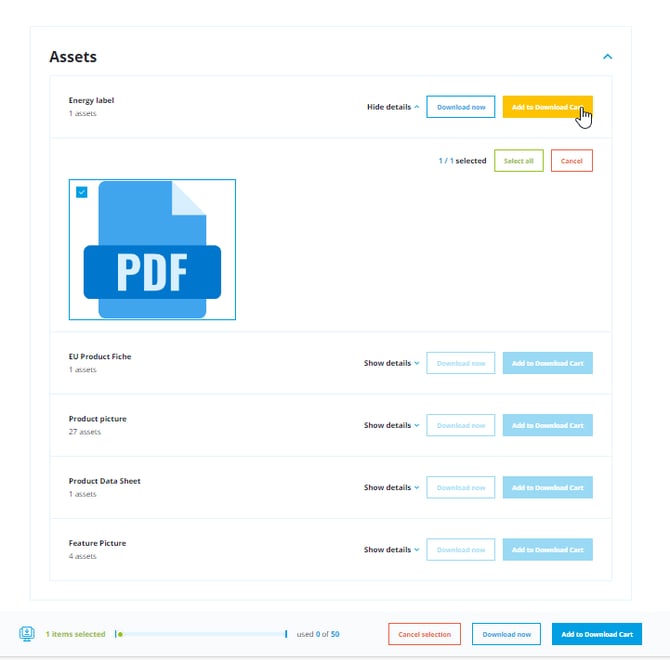
Once you have finished your selection, click either  to add more items to your cart or
  to start the download process immediately.
Downloading
By clicking on the top button you will be redirected to your Download Cart, where all selected items are listed. Here you can remove individual items, delete entire groups, or clear the cart completely.
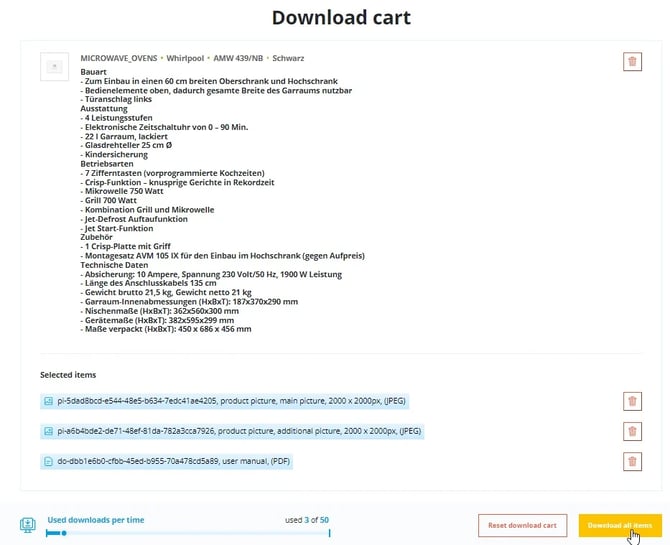
When you are satisfied with your selection, click  to complete the process.
If you want to learn more about managing the Download Cart, see this article: