
To display the product prices besides each individual product they need to be configured. On the top right corner click on the settings button and select Product Prices.
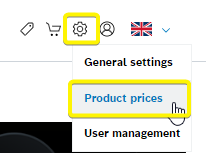
You will be redirected to the Product Price settings, where you can fully configure how the prices are displayed in your Digital Sales Assistant. To start this process, follow the next steps:
STEP 1
Set the factors for the different categories. These factors can be overwritten if you set a specific sales price for a product.
STEP 2
Decide if you want the prices to exceed the Recommended Retail Price, and turn on the feature if you desire.
STEP 3
Click on save when your input is finished. Click on start import to apply the settings.

The manual "Start Import" button can only be pressed every 24 hours. Besides the button you can see how much time you have left until it becomes available again.

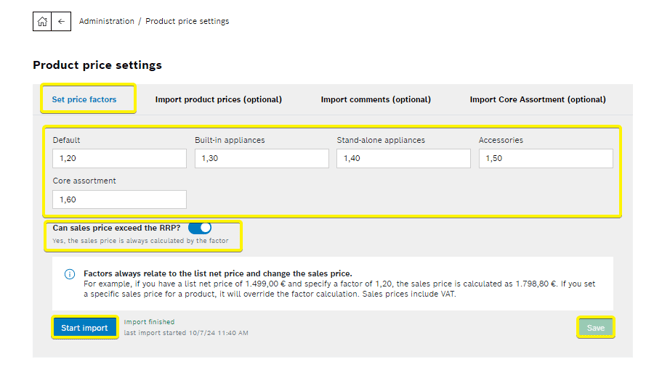
In order to see price information the price factors must be set, otherwise the Sales Price will be always "0.00"
Alternative ways to import prices:
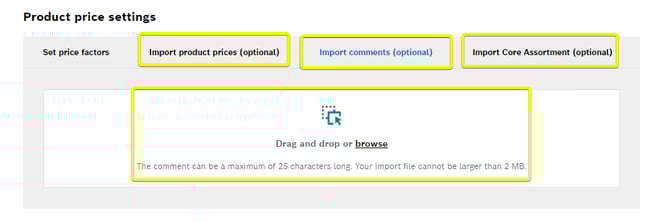
File import
You can also import files with the Product Prices, Comments or Core Assortment, each of these options have a set limit for the import.
- Product Prices - Your import file cannot be larger than 2MB.
- Comments - The comment can be a maximum of 25 characters long. Your import file cannot be larger than 2 MB.
- Core Assortment - Your import file cannot be larger than 2MB.
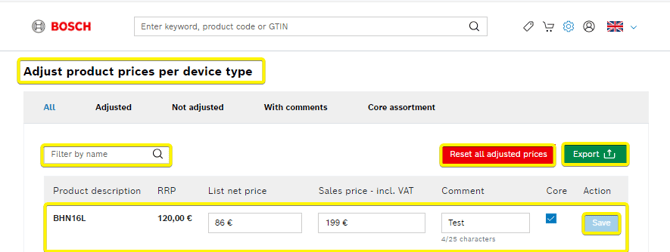
Manual product price changes
Below the initial configuration, you can manually adjust prices for each device type. The full device list is displayed, and for every device you can modify:
-
List net price
-
Sales price (VAT included)
-
Comments
-
Core device status
You can filter the device list based on the changes you have made. All manual modifications can be reset and exported.
The product price will be shown as seen in the following picture. Sales Price and the RRP.
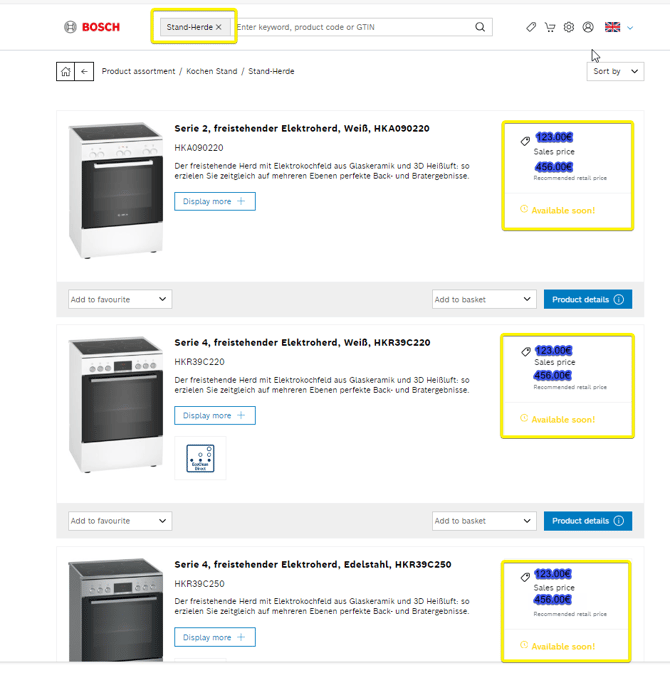
The most recent changes always override any earlier ones. Whether you save prices using factors, import a file, or update a product manually, the last action performed becomes the active basis for all prices.
Watch our video walkthrough here: